
When buying a used laptop, most people check the processor, RAM, storage, screen, and overall physical condition. These are important, but there is one component that is often overlooked: the battery.
A used laptop may work normally when connected to a charger, but its battery could have significantly reduced capacity. Once you unplug it, you may discover that it lasts only a short time.
That’s why it is important to check laptop battery health before buying a second-hand laptop.
You don’t need to be a technical expert to do this. Windows includes a built-in battery report that can provide useful information about the battery’s original capacity, current capacity, and, on some systems, cycle count.
In this guide, you’ll learn how to check laptop battery health on Windows, understand the numbers in the battery report, identify signs of battery wear, and inspect the rest of the laptop before making a purchase.
How to Check Laptop Battery Health on Windows
Laptop batteries naturally lose capacity as they age and go through charging and discharging cycles.
For example, suppose a laptop originally had a battery with a design capacity of 50,000 mWh. After several years of use, its current full charge capacity might have fallen to around 35,000 mWh.
The laptop may still work normally, but it will not provide the same battery runtime it offered when the battery was new.
Reduced battery capacity can be particularly inconvenient if you use the laptop for school, work, travel, meetings, or other situations where a power outlet is not always available.
Windows provides a simple way to check this information through its built-in battery report.
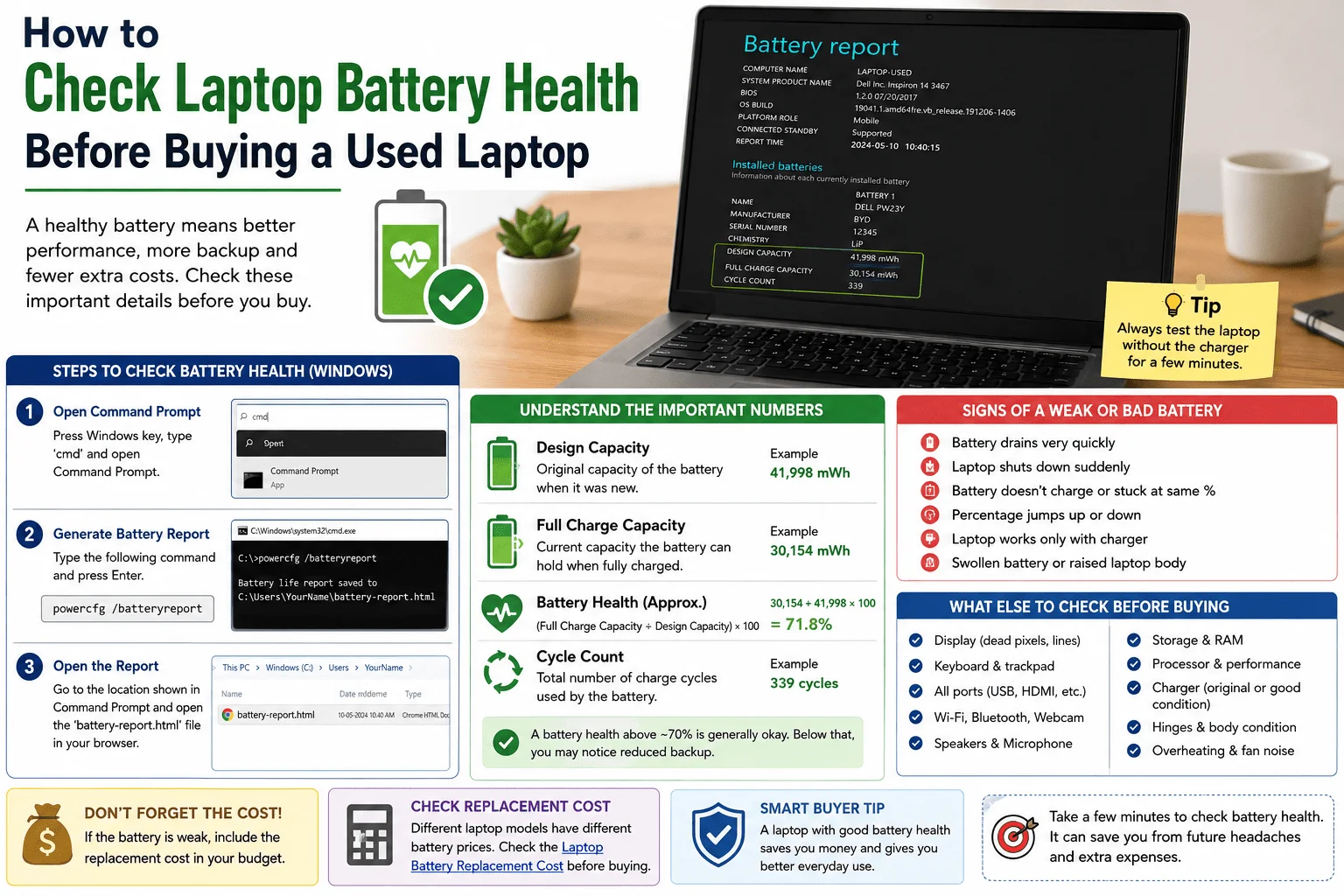
Step 1: Open Command Prompt
Press the Windows key and search for Command Prompt.
You can also type CMD into the Windows search bar and open Command Prompt.
Step 2: Generate the Battery Report
Type the following command:
powercfg /batteryreport
Press Enter.
Windows will generate an HTML battery report and display the location where the file has been saved.
The file is commonly named:
battery-report.html
Step 3: Open the Battery Report
Go to the location shown in Command Prompt and open the battery-report.html file in your web browser.
The report may contain a lot of information. For a used-laptop inspection, however, you can focus on a few key details, particularly Design Capacity, Full Charge Capacity, and Cycle Count, when available.
Design Capacity vs. Full Charge Capacity
The difference between design capacity and full charge capacity is one of the most useful things to check when evaluating a used laptop battery.
You will generally see these two figures under the battery information section:
- Design Capacity
- Full Charge Capacity
What Is Design Capacity?
Design Capacity is the amount of energy the battery was designed to hold when new.
For example:
Design Capacity: 50,000 mWh
This represents the battery’s original rated capacity.
What Is Full Charge Capacity?
Full Charge Capacity indicates how much energy the battery can currently hold when it is fully charged.
For example:
Full Charge Capacity: 40,000 mWh
Comparing this number with the original design capacity gives you an estimate of how much of the battery’s original capacity remains.
How to Calculate Remaining Battery Capacity
You can use this formula:
Full Charge Capacity ÷ Design Capacity × 100
For example:
40,000 ÷ 50,000 × 100 = 80%
In this example, the battery currently holds approximately 80% of its original rated capacity.
This does not mean the laptop will provide exactly 80% of its original battery runtime. Actual runtime also depends on factors such as screen brightness, processor workload, applications, Wi-Fi usage, video playback, power settings, and battery age.
What Is Battery Wear Level?
Battery wear refers to the capacity the battery has lost compared with its original design capacity.
For example:
- Design Capacity: 60,000 mWh
- Full Charge Capacity: 48,000 mWh
- Approximate Remaining Capacity: 80%
- Approximate Capacity Loss: 20%
You can estimate capacity loss with this formula:
100 − (Full Charge Capacity ÷ Design Capacity × 100)
In this example, the estimated capacity loss is approximately 20%.
However, don’t automatically reject a used laptop simply because the battery has lost some capacity. A battery with reduced capacity can still be usable if its remaining runtime meets your needs.
If you plan to keep the laptop connected to a charger most of the time, battery condition may be less important.
On the other hand, if you need the laptop for travel, college, business meetings, commuting, or other situations where you regularly work away from a power outlet, battery condition should carry more weight in your buying decision.
What Does Battery Cycle Count Mean?
You may also find a Cycle Count in the Windows battery report.
A battery cycle does not simply mean plugging the charger in once.
Instead, one cycle generally represents cumulative battery usage equivalent to 100% of the battery’s capacity. This can happen over several charging sessions.
For example, if you use approximately 50% of the battery one day and another 50% on another day, that adds up to roughly one full cycle.
A higher cycle count can indicate more extensive battery use, but it should not be used by itself to determine whether a used laptop battery is good or bad.
Battery age, temperature, usage patterns, charging behavior, and battery design can also affect battery condition.
Also, not every Windows laptop reports cycle count. If the information is missing from the battery report, don’t assume that the battery has a specific number of cycles.
How to Check a Used Laptop Battery Before Buying
If you’re inspecting a used laptop in person, don’t rely only on the battery percentage shown in Windows.
A laptop showing 100% charge does not necessarily have a battery that is in excellent condition. It simply means the battery has reached its current maximum charge level.
Use the following process before making a purchase.
1. Turn On the Laptop Without the Charger
If possible, start the laptop using battery power.
Check whether it starts normally and whether Windows recognizes the battery.
If the laptop works only when connected to the charger, ask the seller about the battery condition before proceeding.
2. Generate the Windows Battery Report
Open Command Prompt and run:
powercfg /batteryreport
Open the HTML report created by Windows.
3. Compare Design Capacity and Full Charge Capacity
Find:
- Design Capacity
- Full Charge Capacity
Compare the two figures to estimate how much of the battery’s original capacity remains.
This is generally more useful than looking only at the battery percentage displayed in the taskbar.
4. Check the Cycle Count
If cycle count is available, review it.
Use it together with the capacity information, battery age, and actual battery performance. Avoid making a purchase decision based on cycle count alone.
5. Disconnect the Charger and Test the Laptop
Unplug the charger and use the laptop for a while.
Perform normal tasks such as:
- Opening a browser
- Playing a video
- Adjusting screen brightness
- Opening a few applications
- Using Wi-Fi
Watch how the battery percentage changes.
If the battery percentage falls unusually quickly or the laptop shuts down unexpectedly, investigate the battery condition further.
A short test cannot determine exact battery runtime, but it can reveal obvious problems.
6. Check Whether the Battery Charges Normally
Reconnect the charger and confirm that Windows shows that the battery is charging.
If it does not charge correctly, the cause could be the battery, charger, charging port, firmware, or another hardware component.
Therefore, don’t automatically assume that a charging problem means the battery itself is defective.
7. Inspect the Laptop for Battery Swelling
Carefully inspect the laptop around the:
- Trackpad
- Keyboard
- Bottom panel
- Side edges
- Screws and casing
If the casing appears raised, separated, or unusually distorted, the battery may be swollen, although other physical problems can also cause deformation.
A swollen battery should be treated as a serious safety issue.
Do not press, puncture, bend, or otherwise put pressure on a battery that appears swollen. Have the laptop inspected by a qualified technician.
When Might a Used Laptop Battery Need Replacement?
A battery does not automatically need replacement simply because it has lost some of its original capacity.
However, the following signs deserve attention:
- The battery drains unusually quickly.
- The laptop shuts down unexpectedly while running on battery power.
- The laptop turns off immediately after the charger is disconnected.
- The battery does not charge properly.
- The battery percentage changes unexpectedly.
- Windows displays a battery-related warning.
- Full charge capacity is significantly lower than design capacity.
- The laptop casing appears raised or swollen around the battery area.
If you notice one or more of these issues, check the replacement cost for the specific laptop model before buying it.
Battery prices vary depending on the laptop model, battery type, manufacturer, availability, and whether professional installation is required.
Don’t Forget to Include Battery Replacement Cost
Suppose you find a used laptop for ₹20,000.
The laptop appears to work properly, but the battery needs replacement.
If the replacement battery and installation cost several thousand rupees, your actual cost is not simply ₹20,000.
A more realistic calculation is:
Laptop Price + Battery Replacement + Other Necessary Repairs = Total Cost
This makes it easier to compare different used laptops.
For example, a cheaper laptop that immediately requires a battery and other repairs may ultimately cost more than a slightly more expensive laptop that requires fewer repairs.
Before buying, research the expected Laptop Battery Replacement Cost for the exact model rather than assuming all laptop batteries cost the same.
What Else Should You Check Before Buying a Used Laptop?
Battery condition is important, but it is only one part of the overall inspection.
Before buying, check the following components as well.
Screen
Look for:
- Dead pixels
- Lines
- Flickering
- Dark spots
- Unusual colors
- Brightness problems
- Cracks or physical damage
Keyboard
Open a text editor and test the major keys, including letters, numbers, function keys, and commonly used special keys.
Trackpad
Check cursor movement, clicking, scrolling, and supported gestures.
USB and Other Ports
Test the ports you expect to use, including:
- USB
- USB-C
- HDMI
- Headphone jack
- Charging port
Wi-Fi and Bluetooth
Connect to Wi-Fi and confirm that the connection works normally.
If the laptop supports Bluetooth, test it with a compatible device if possible.
Speakers and Microphone
Play some audio and check the speakers.
Use a recording or communication application to test the microphone.
Webcam
Open the Windows Camera application and verify that the webcam works properly.
Storage
Check the actual SSD or HDD capacity and compare it with the seller’s description.
If possible, also check the drive’s health using an appropriate diagnostic tool.
RAM and Processor
Open Windows System Information or another reliable system-information utility and confirm that the installed RAM and processor match the advertised specifications.
Hinges and Chassis
Open and close the display carefully.
Look for loose hinges, cracks, missing screws, bent areas, or other signs of physical damage.
Charger
Check that the charger is compatible with the laptop and works properly.
Inspect the cable, connector, and adapter for visible damage.
Heat and Fan Noise
Use the laptop for several minutes and pay attention to excessive heat, unusual fan noise, or sudden performance problems.
These checks can help you identify many common problems, but they cannot guarantee that every hidden hardware issue will be detected.
FAQs About Laptop Battery Health
How do I check battery health on Windows 11?
Open Command Prompt and enter powercfg /batteryreport. Press Enter, then open the HTML battery report from the location shown in Command Prompt.
Is 100% charge the same as 100% battery health?
No.
A worn battery can still show 100% charge. This means the battery has reached its current maximum charge level; it does not mean that it can hold the same amount of energy it could when new.
How do I calculate remaining battery capacity?
Use this formula:
Full Charge Capacity ÷ Design Capacity × 100
This provides an estimate of how much of the battery’s original capacity remains.
Does every laptop show battery cycle count?
No.
Some laptops report cycle count through Windows, while others may not provide this information.
Should I avoid a used laptop with a weak battery?
Not necessarily.
Consider the laptop’s overall condition, asking price, your expected battery usage, and the potential cost of replacing the battery.
If you mainly use the laptop near a power outlet, reduced battery capacity may be less important than it would be for someone who regularly travels.
Can the Windows battery report tell me exactly how long the battery will last?
No.
The report provides useful information about battery capacity and usage history, but actual runtime depends on workload, screen brightness, applications, Wi-Fi, power settings, battery age, and other factors.
Conclusion
Before buying a second-hand laptop, take a few minutes to check laptop battery health rather than relying only on the battery percentage displayed in Windows or the seller’s description.
Generate the Windows battery report, compare the design capacity with the current full charge capacity, check the cycle count if available, and test the laptop while it is disconnected from the charger.
Also remember that battery health is only one part of a used laptop inspection. Check the screen, keyboard, trackpad, ports, Wi-Fi, storage, RAM, processor, hinges, charger, speakers, webcam, cooling, and overall physical condition.
A weak battery does not automatically make a used laptop a bad purchase. The important thing is to understand the condition, estimate any likely repair or replacement costs, and include those costs when deciding whether the asking price represents reasonable value.
If you’re comparing used laptops, you can also explore Used Laptop in Gurgaon and apply the same inspection process before making a purchase.
This Post Has 15 Comments
Really helpful, thank you. This actually ties into something. I’ve lately been leaning on a job board at https://stgb.ue12343.com/ that genuinely changed how I look for work. You can narrow roles down by location, employer and salary, and fresh openings show up constantly.
Perfect timing on this. Funny timing, because of this. Been looking around myself lately, and https://gvqa.applywave.shop/ is the resource I keep coming back to. Thousands of roles, updated daily — no endless scrolling. Wishing everyone the best with the search.
I was skeptical at first but this place is legit. Smooth transactions and a great variety of options to choose from. pk1777xs
The app version is so convenient. I can play anywhere and anytime without any hiccups. Download 22jiliapps for the best mobile gaming.
The bonuses are actually legit here. I managed to hit a decent win last night and the withdrawal was super quick. phjiliboss is my new favorite spot.
Really impressed with the variety of options available here. The bonuses are fair and the customer support is actually helpful. Glad I found 668betapp.
I’m really impressed with the fair play and the transparency of the odds here. It feels much safer than other places I’ve tried. Glad I found vnsc887
If you are looking for a platform that actually pays out and has a wide range of slots, bigobet889 is the way to go.
I love the bonuses they give to new players. It really helped me get started and build my balance. Big thanks to pkad7777 for the generosity.
The app installation was a breeze and it runs perfectly on my phone. No lags and very stable connection. Get your copy at lucky999gamedownload.
I am really impressed with the bonus offers they have for new players. It is a great way to start winning at winpluscasino
I’ve tried a few sites lately and this one really stands out. The interface is smooth and the payouts are surprisingly fast. Definitely my new go-to spot! ph777kph
The updated app version is just amazing. The stats are updated in real time which helps me make better decisions. rotowireapp is a must have for sports fans.
The app is a game changer! I can play whenever I am on the go without any crashes. g777betapp is honestly the best way to play.
Love the variety of slots available. It feels very fair and the customer support is actually helpful. Give pkxs777 a try!